

Quick answer: The best Reels editor depends on your level. Beginners should start with Instagram's own Edits app or InShot. Want a genuinely free editor with no watermark? Use VN Video Editor. The best all-round pick for most creators is CapCut. Ready to level up? Filmora for intermediate, and Adobe Premiere Pro / Adobe Express (or free DaVinci Resolve) for pros. But before you open any editor, study what is already working in your niche with the free IShort Chrome extension.
How to pick a Reels editor in 2026
There is no single "best" app to edit Instagram Reels — there is only the best app for your skill level, device, and goals. A first-time creator needs speed and simplicity; a full-time creator needs precision and control. Below we rank the top editors from beginner to pro, with what each one is genuinely best at, whether it is free or paid, and one honest limitation so you know the trade-off before you commit.
One thing every great Reel has in common has nothing to do with the editor: it starts from a proven idea. We will come back to that at the end, because studying what already works in your niche is the highest-leverage step most creators skip.
Best for beginners
Edits (by Instagram) — best for staying in-platform
Best at: Instagram's own free editing app, built specifically for Reels-style vertical video. It is native to Instagram, so your project flows straight into publishing, and it packs a surprising amount for a first app: a timeline editor, a teleprompter for talking-head scripts, performance insights, AI-assisted tools, and clean, high-quality export.
Free or paid: Completely free. One honest limitation: it is a newer, mobile-first app focused on the Instagram workflow, so it does not (yet) match the deep effect libraries or advanced timelines of long-established editors. If you want the full breakdown, see our deep dive on the Edits app.
InShot — best for absolute simplicity
Best at: the friendliest on-ramp to mobile editing. InShot makes trimming, adjusting speed, adding music, recording voiceovers, and dropping in captions almost effortless, with a social-first layout that assumes vertical video from the start. You can publish a clean Reel within minutes of installing it.
Free or paid: free with a watermark; a paid upgrade removes it and unlocks extras. One honest limitation: as your edits get more ambitious (multi-layer effects, precise keyframing) you may outgrow it and want a more capable timeline.
Best free / no watermark
VN Video Editor — the free pick that does not brand your video
Best at: serious editing without paying and without a watermark. VN gives you a real multi-track timeline, keyframes, and speed curves inside a clean, distraction-free interface. It sits comfortably at the intermediate level while staying approachable, which is why it is a favorite for creators who want control on a budget.
Free or paid: free, with no watermark on export — the headline reason to choose it. One honest limitation: its asset and template ecosystem is smaller than CapCut's, so you lean more on your own creativity than on ready-made trends.
Best all-rounder
CapCut — the most popular do-everything editor
Best at: being the fastest path from idea to finished trend. CapCut is the most widely used Reels editor for good reason — templates, one-tap auto-captions, transitions, effects, and a huge asset library let you turn around a polished, on-trend Reel quickly. It scales nicely from beginner to intermediate as you learn.
Free or paid: a genuinely capable free tier, with a paid Pro plan for premium effects and assets. One honest limitation: some of the most eye-catching effects and assets are gated behind Pro, and template-driven edits can look similar to everyone else's unless you customize them.
For intermediate creators
Once you have outgrown one-tap templates, you want more manual control without a steep learning curve. Two picks bridge that gap.
VN (leveling up)
The same VN from the free section doubles as an intermediate workhorse. Its keyframes and speed curves are enough for satisfying, professional-feeling motion and pacing — and because it is free with no watermark, it is a low-risk place to practice more advanced techniques.
Filmora — power without the full-pro complexity
Best at: balancing capability and ease of use across both desktop and mobile. Filmora gives intermediate-to-pro creators more control — layered tracks, effects, keyframing, and audio tools — while staying far more approachable than a full professional suite. It is a natural next step when a mobile app starts to feel limiting.
Free or paid: free to try, with a paid plan (and watermark removal) for full use. One honest limitation: the free version watermarks exports, so it is really a paid tool once you go public.
For pros
Adobe Premiere Pro & Adobe Express
Best at: two different pro jobs. Premiere Pro is the industry-standard desktop editor for full control — precise cutting, advanced audio, color, and effects — when a Reel is part of a larger, high-production workflow. Adobe Express is the opposite: a fast, template-friendly tool for quick, on-brand social edits when you need volume and consistency, not frame-level control.
Free or paid: Premiere Pro is subscription-based; Express has a free tier plus paid plans. One honest limitation: Premiere Pro has the steepest learning curve here and is overkill for simple Reels, while Express trades depth for speed.
DaVinci Resolve — the free pro option
Best at: professional editing and best-in-class color grading on desktop, with a remarkably complete free version. If you are willing to climb the learning curve, it delivers pro results without a subscription. One honest limitation: it is desktop-heavy and complex — the most demanding pick on this list for a casual creator.
Quick comparison
| App | Best for | Free or paid | Level |
|---|---|---|---|
| Edits (by Instagram) | Staying inside Instagram | Free | Beginner |
| InShot | Simplest mobile editing | Free (watermark) / paid | Beginner |
| VN Video Editor | Free, no watermark, real control | Free | Intermediate |
| CapCut | All-round, trends & templates | Free / Pro | Beginner–Intermediate |
| Filmora | Power without full complexity | Free trial / paid | Intermediate–Pro |
| Premiere Pro / Express | Full desktop control / fast branded edits | Paid / freemium | Pro |
| DaVinci Resolve | Free pro editing & color | Free (paid Studio) | Pro |
App availability, pricing, and features change often, so always confirm the current details in your app store before you commit to a paid plan.
Before you edit: study what is already going viral
Here is the part most "best editing app" lists ignore: editing is only half the battle. The best editor in the world will not save a Reel built on a weak idea or a flat hook. The creators who win consistently do not start by opening an editor — they start by studying what is already working in their niche, then recreate that structure in whatever app they prefer.
That is exactly what the free IShort Chrome extension is built for. IShort is an analytics tool, not an editor — it does not touch your video. What it does is let you open any public creator's Reels tab, sort their Reels by views to surface the true outliers, and read the exact hook, format, caption, and hashtags behind each breakout. You copy the pattern that is proven to work, then rebuild it in CapCut, VN, or Edits.
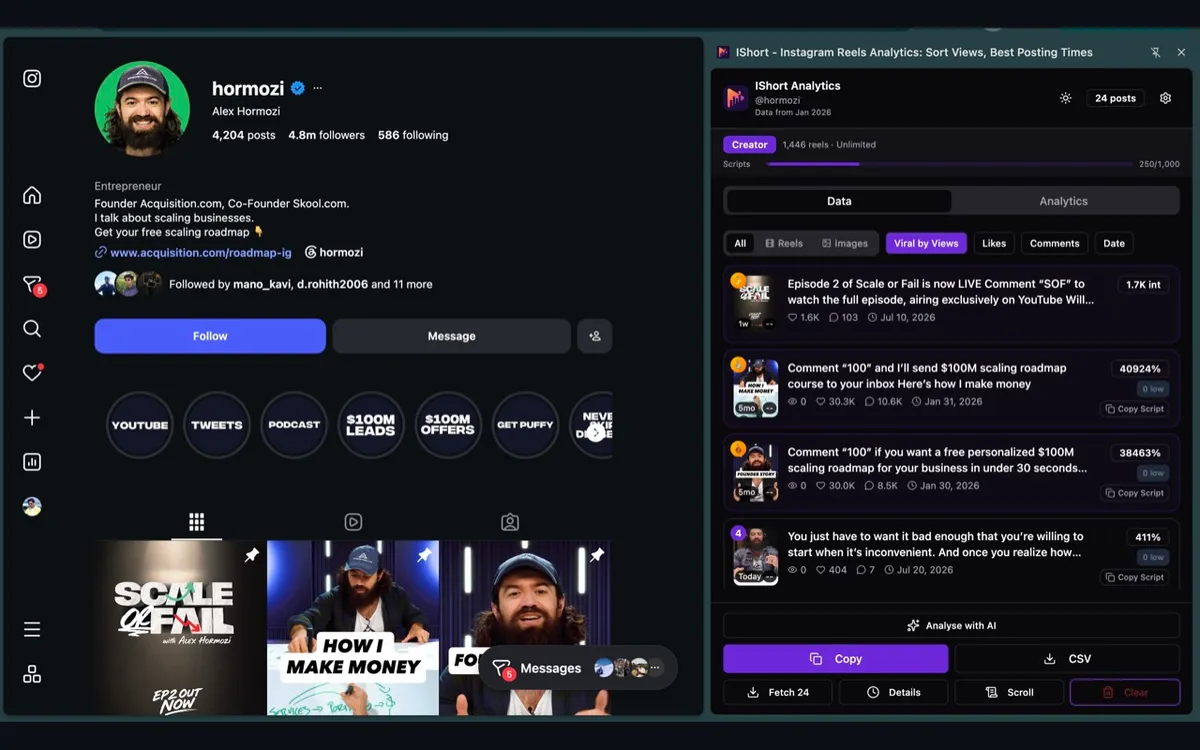
The workflow is simple: research first, edit second. Use IShort to analyze competitor Reels and lock in a hook and format that is already earning views, then pick the editor from this list that matches your skill level and bring that idea to life. Pair it with the fundamentals in our guide on how to get more views on Instagram Reels, and your editing time actually compounds instead of being spent on guesses.
Edit smarter, not just harder
Install the free IShort Chrome extension, open any competitor's Reels tab, and sort by views to find the exact hooks and formats going viral in your niche — then recreate them in the editor of your choice.
Install IShort FreeFrequently asked questions
What is the best free app to edit Instagram Reels?
VN Video Editor is the best free pick because it exports with no watermark and still includes a multi-track timeline, keyframes, and speed curves. Instagram's own Edits app is also completely free, and CapCut has a generous free tier (some effects require paid Pro).
What is the best Reels editing app for beginners?
Instagram's Edits app or InShot. Edits keeps everything inside Instagram with a clean, guided flow; InShot has an extremely simple interface for trimming, music, text, and voiceovers. Both get you to a polished Reel within minutes.
CapCut vs VN: which is better for Instagram Reels?
CapCut is the better all-rounder for templates, auto-captions, and trend speed. VN is better if you want full manual control with no watermark for free and a distraction-free timeline. Choose CapCut for speed and templates; choose VN for a clean, free, control-first workflow.
Does Instagram have its own editing app?
Yes — Instagram makes a free app called Edits, built specifically for Reels-style vertical video, with a timeline, teleprompter, performance insights, AI tools, and clean high-quality export.
What is the best pro app to edit Instagram Reels?
Adobe Premiere Pro for the deepest desktop control, Adobe Express for quick branded social edits, and DaVinci Resolve as a strong free pro desktop option. Filmora bridges intermediate to pro for creators who want more power without full complexity.